Chores That Actually Get Done the First Time You Ask
Powerful features designed for busy parents and simple enough for kids to understand at a glance.
Tasks that actually get done
Create clear tasks with due times for each child. If something goes overdue, taskr blocks the apps you chose until you approve their photo submission.
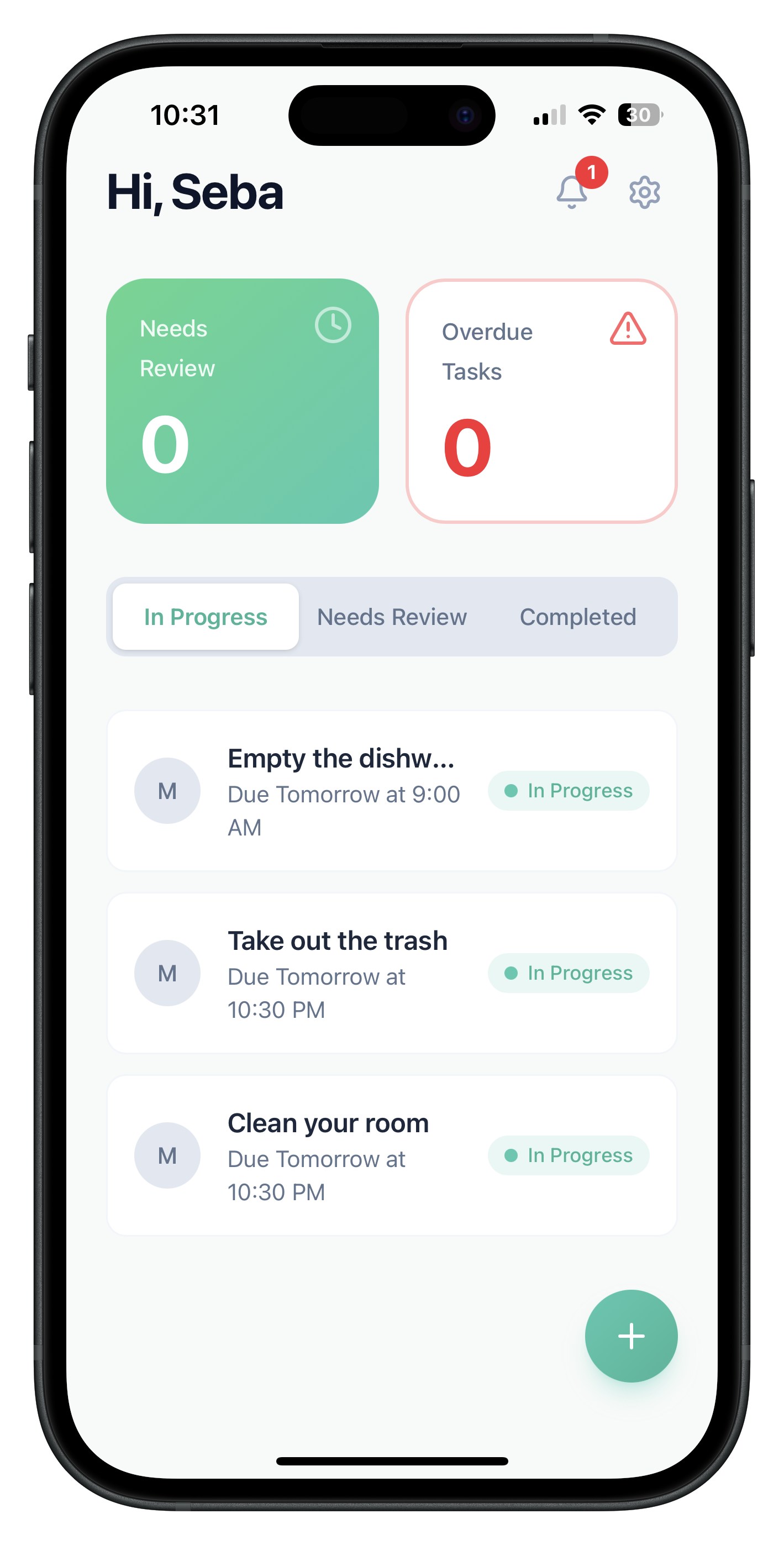
Real-time parent dashboard
See what is due, overdue, which apps are blocked, and which photo submissions are waiting for review—all in one view.
Photo proof and parent approvals
Kids snap a photo when they finish a chore. You approve, reject, or add feedback from your phone and taskr updates Screen Time instantly.
Smart Screen Time rules
Set Screen Time rules that only activate when a task misses its deadline. Choose apps or categories to block and keep essentials available.
Built on Apple Family Controls
taskr uses Apple's approved Family Controls so Screen Time changes are safe, secure, and fully under your supervision.
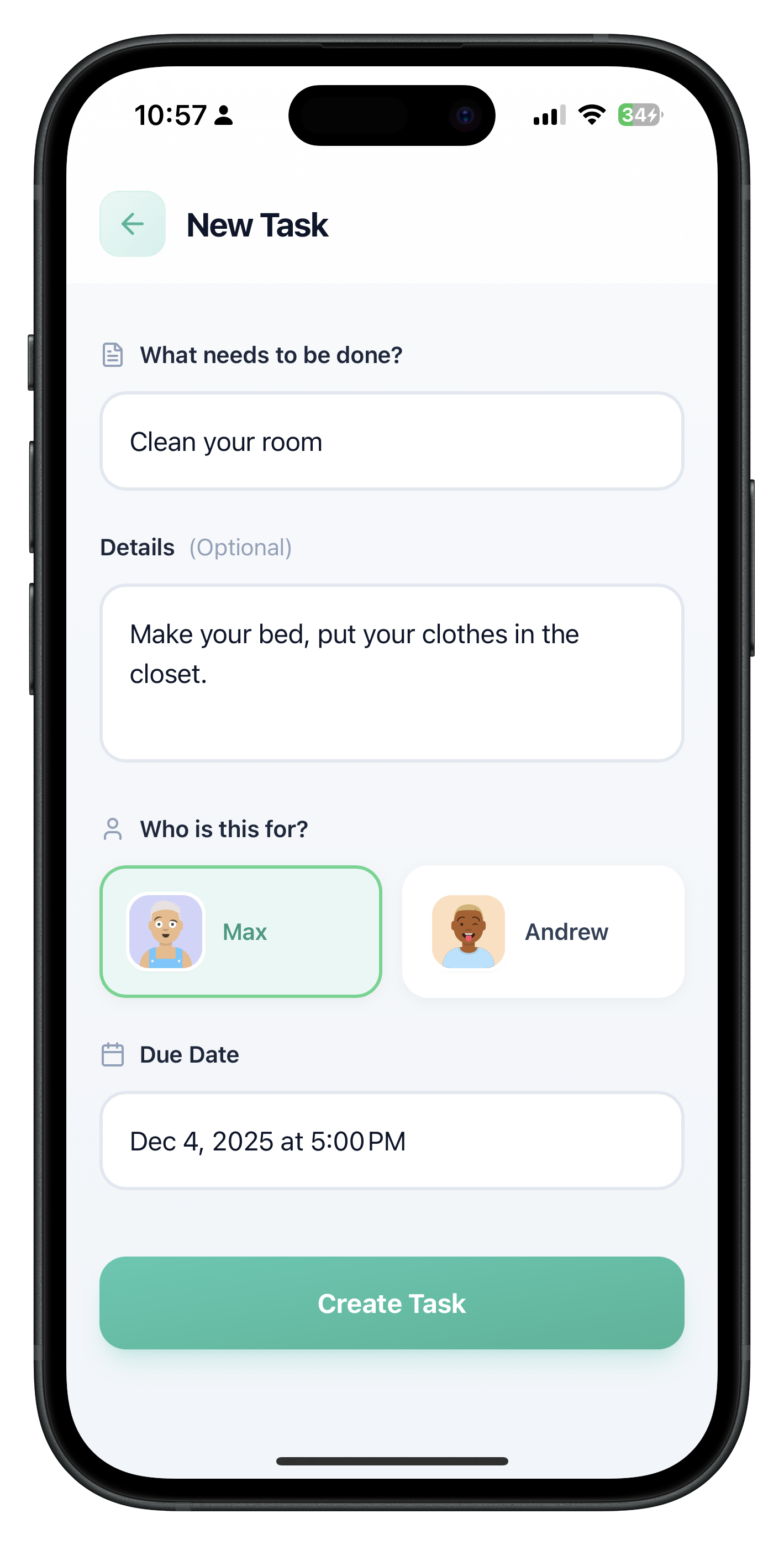
Create tasks with due times and clear consequences.
Add chores or homework, set when they are due, choose which apps will lock if they run late, and require photo proof so approvals are simple.
- Task name, instructions, and due time all in one clean flow per child.
- Pick which apps or categories to block if the deadline is missed, and set exceptions you want to allow.
- Require a quick photo upload so approvals are fast and kids know exactly what to submit.
Built-in Screen Time Controls
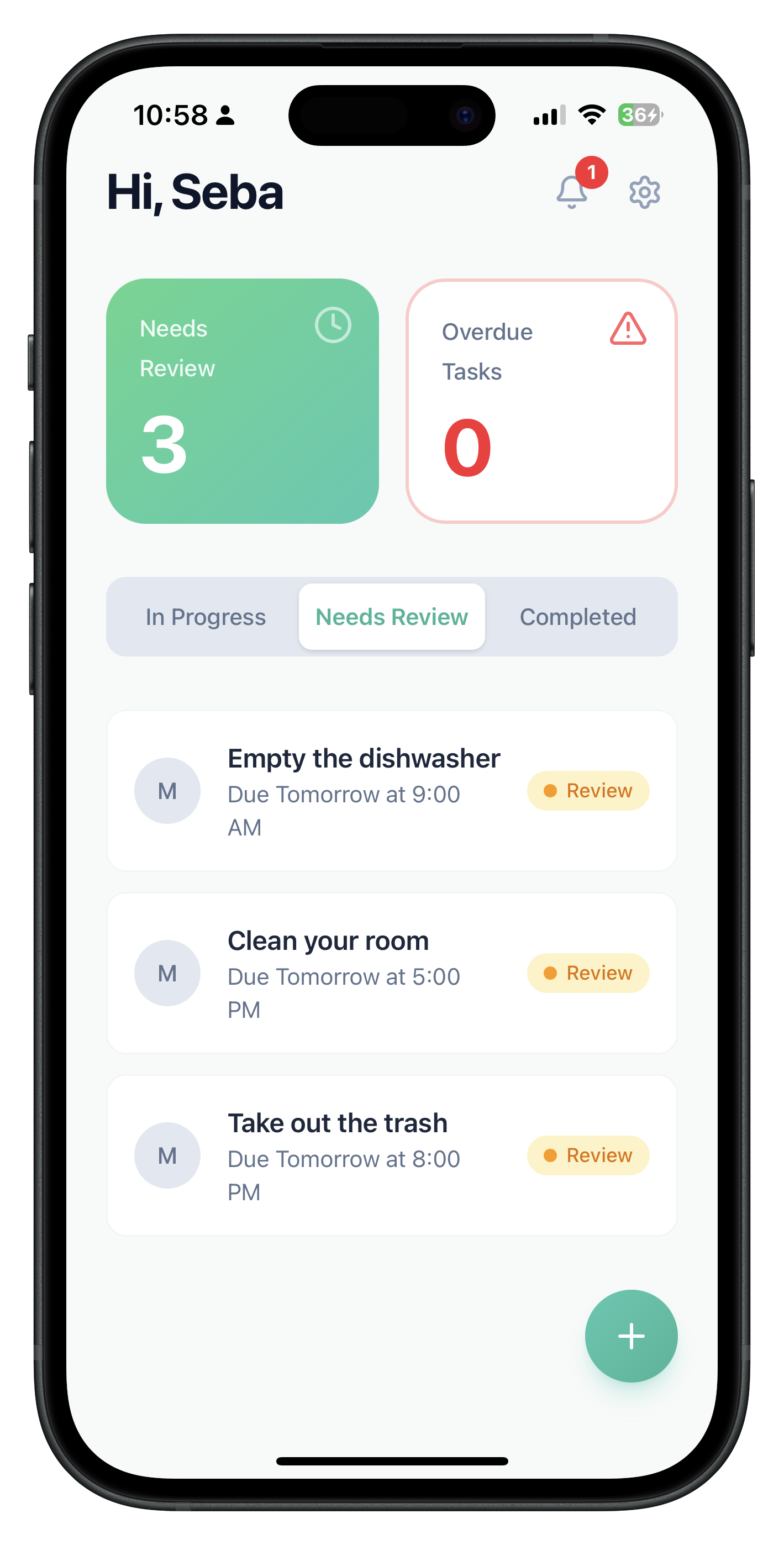
This is the parent dashboard. taskr links chores to Screen Time and shows what needs approval and what's currently overdue.
When a task goes overdue, the apps you selected are blocked. Kids submit a photo, it lands here, and you decide what happens next.
Automatic app blocking
Overdue tasks turn on Screen Time and block the apps or categories you picked.
Photo proof
Kids send a quick photo when they finish. Approve, reject, or extend the deadline.
Only locks when overdue
Before the deadline, everything stays open. taskr only locks apps when a task is late.
Custom exceptions
Block distractions while keeping essentials like school apps, calls, or messages available.
Per-task control
Pick specific apps, categories, or device-level limits for each task.
No extra hardware
Everything works through Apple's built-in Family Controls.
Get Started in 4 Simple Steps
From setup to success in minutes. No complicated learning curve.
Create your parent account
Download taskr on your iPhone, sign up as the parent, and create profiles for each child.
Connect your kids' devices
Use Apple's Family Controls to link each child's iOS device and grant Screen Time access.
Create tasks with due times and rules
Add chores or homework, set due times, and choose which apps or categories to block if a task is late.
Overdue tasks turn on Screen Time
When something is overdue, taskr blocks the chosen apps until your child submits a photo you approve.
Why taskr
taskr takes the power of Apple Screen Time and connects it directly to tasks and chores, so device access is earned, not argued about.
| Feature | taskr | Standard Screen Time |
|---|---|---|
Parent-approved, task-based unlocking | Approvals instantly lift Screen Time limits after you review photo proof. | Parents must manually change limits with no connection to chores. |
Automatic app blocking when chores go overdue | Late tasks trigger the Screen Time rules you picked without extra steps. | No automatic link between chores and app blocking. |
Parent dashboard and task tracking | See what is due, overdue, blocked, and waiting for approval. | Only shows daily device limits with no task context. |
Runs on Apple-approved Family Controls | Built entirely on Apple Screen Time for iOS families. | Apple's own Screen Time settings. |
Parent-approved, task-based unlocking
Approvals instantly lift Screen Time limits after you review photo proof.
Parents must manually change limits with no connection to chores.
Automatic app blocking when chores go overdue
Late tasks trigger the Screen Time rules you picked without extra steps.
No automatic link between chores and app blocking.
Parent dashboard and task tracking
See what is due, overdue, blocked, and waiting for approval.
Only shows daily device limits with no task context.
Runs on Apple-approved Family Controls
Built entirely on Apple Screen Time for iOS families.
Apple's own Screen Time settings.
Frequently Asked Questions
Everything you need to know about taskr.