Comparison

taskr vs. Apple Screen Time

Apple Screen Time is great at blocking apps. It just doesn't know what your kids are supposed to be doing. taskr is the layer on top that does — it extends Apple Screen Time with chore-conditional blocks and photo proof, built on Apple Family Controls.

Feature-by-feature comparison

Connects chores to Screen Time
taskr

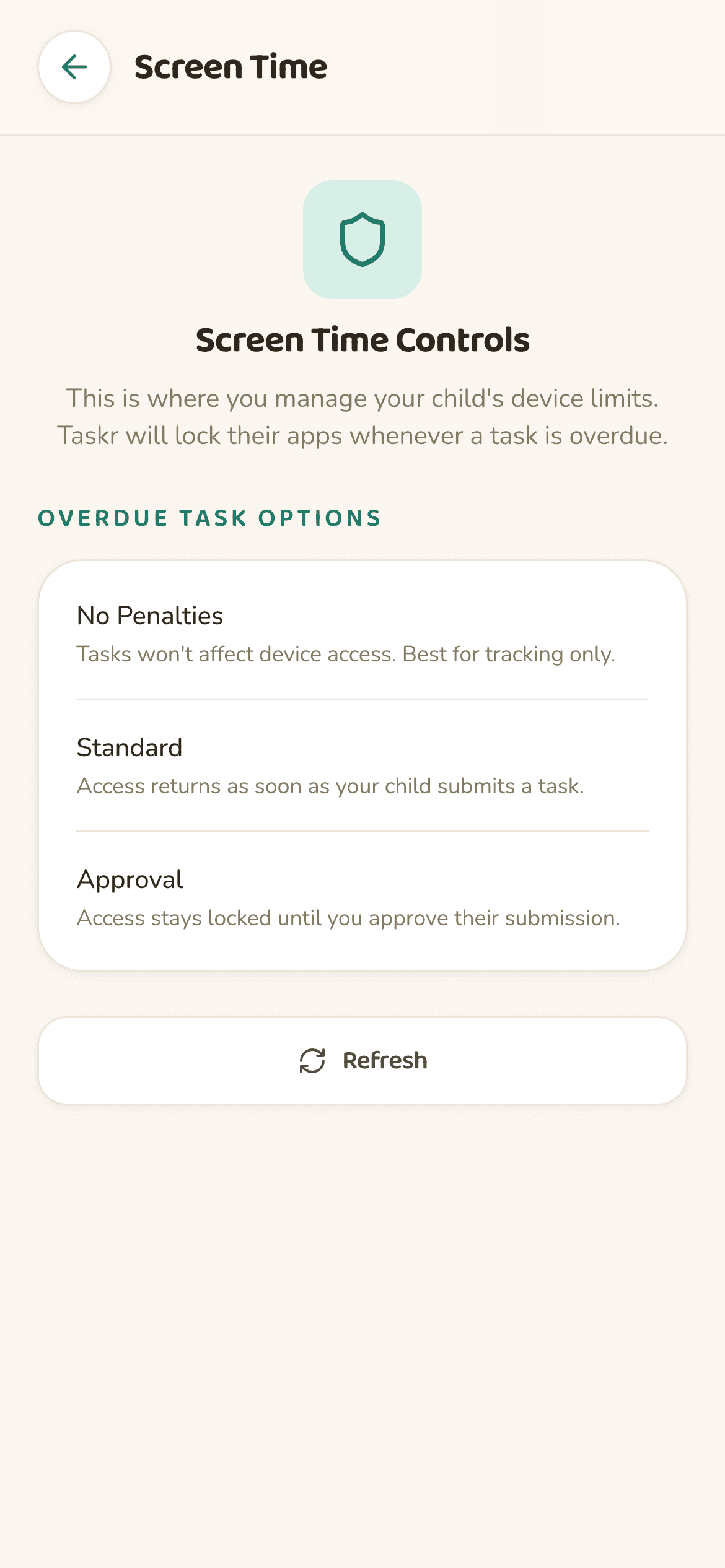
Every task can trigger a Screen Time block on its due time. The block lifts when you approve a photo.

Apple Screen Time (alone)

Screen Time has no concept of chores or homework. It runs only on schedules and totals.

Photo proof of work done
taskr

Built into every task — kids snap a photo, parents review, and Screen Time updates instantly.

Apple Screen Time (alone)

No way to verify a chore was actually finished.

Per-task block (instead of whole-day limits)
taskr

Each task can target different apps. Block social during homework, allow messaging during dishes.

Apple Screen Time (alone)

Limits and downtime are device-wide. Adjusting per-chore means manually editing settings every time.

Reward-style flow
taskr

Apps come back the moment a chore is approved. Kids learn cause and effect.

Apple Screen Time (alone)

No reward link. Limits reset on a clock, regardless of behavior.

Live parent dashboard
taskr

One screen for what's due, overdue, blocked, and waiting on your approval.

Apple Screen Time (alone)

Shows weekly device usage. No task or chore context.

Built on Apple Family Controls
taskr

Yes — taskr uses Apple's approved Family Controls API.

Apple Screen Time (alone)

Yes — it is Apple's framework.

Works on iPhone and iPad
taskr

Yes, iOS 16+.

Apple Screen Time (alone)

Yes, all supported Apple devices.

Free to use
taskr

Yes — free on the App Store.

Apple Screen Time (alone)

Yes — built into iOS.

Real scenarios

Homework time

Screen Time: Set Downtime to 4–6pm and apps go dark whether the homework gets done or not. If your kid finishes early, the limit doesn't care.

taskr: Create a 'Homework' task due at 6pm. Apps stay open. If it's late, games and social lock. The moment the worksheet photo is approved, apps return.

Dishes after dinner

Screen Time: There's no Screen Time setting for 'do the dishes.' You either nag or you set a blanket app limit that hits every day.

taskr: Add a 'Dishes' task due at 8pm. Block YouTube and Roblox if it's missed. Approve the photo and the apps come back.

Room cleanup on weekends

Screen Time: You'd manually adjust limits Saturday morning, then remember to undo them.

taskr: Recurring task every Saturday at noon. Block the apps that matter. Photo proof handles the rest.

The bottom line

Apple Screen Time is excellent infrastructure. taskr is the missing application layer on top: a chore tracker that uses Screen Time as the enforcement mechanism. Together, they turn screen time from a clock-based limit into a behavior-based reward.

If you've ever opened Settings → Screen Time to manually flip a limit because a chore wasn't done — that's the workflow taskr automates.

Common questions

Does taskr replace Apple Screen Time?

No. taskr extends Apple Screen Time using Apple's Family Controls API. The blocks are still Screen Time blocks — taskr just connects them to chores instead of a clock.

If I already use Screen Time, do I need taskr?

Screen Time alone enforces totals and schedules. taskr adds the missing piece: a block that fires when a real-world chore is overdue and lifts when a parent approves a photo. If you're using Screen Time as a chore enforcer today, you're doing it manually — taskr automates that.

Will taskr conflict with my existing Screen Time settings?

No. taskr applies its own rules through Family Controls. Your existing Screen Time downtime, communication limits, and content restrictions keep working as you set them.

Can I use both taskr and Screen Time at the same time?

Yes — most families do. Use Screen Time for blanket bedtime downtime and content filters; use taskr to make specific chores actually happen.

Layer taskr on top of Screen Time

Free on the App Store. Works alongside the Screen Time settings you already use.